Employee & Time Clock
Clock in at the register. Payroll is ready when you are.
Staff punch in at any RTS station with their password or a fingerprint. Build the schedule, control what every login can do, and export payroll to your provider from the same system that rings up your sales.
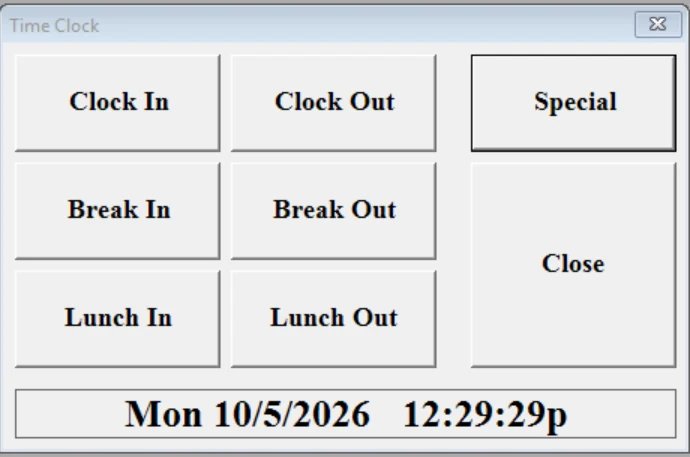
From First Shift to Payday
Every step happens in RTS, so there are no punches to copy over from a separate time clock.
Add the employee
Give them an RTS login, a permission level and the departments they work in.
Schedule the week
Click and drag shifts onto the employee scheduler.
Clock in and out
Staff punch in at any RTS station and pick the department they are working.
Run payroll
Export the pay period straight to ADP, Paycor, PrimePay or Tandem, or as a CSV for any other provider.
Build the Schedule. The Time Clock Checks It.
Drag shifts onto the scheduler by department. Turn on schedule checking and RTS compares every punch to the shift it belongs to.
Stop early clock-ins
Set how many minutes before a shift staff can punch in.
Approve exceptions on the spot
A manager with the right permission can approve a punch outside the schedule.
One person, several roles
Staff who work more than one department pick the role they're working when they clock in.
| Time clock | Sell | Voids and refunds | Close shift | Edit punches and payroll | |
|---|---|---|---|---|---|
| Time clock onlyPunch in and out | ✓ | — | — | — | — |
| CashierRegister sales | ✓ | ✓ | — | — | — |
| SupervisorRuns the floor | ✓ | ✓ | ✓ | ✓ | — |
| ManagerRuns the theatre | ✓ | ✓ | ✓ | ✓ | ✓ |
Everyone Sees Only What Their Job Needs
Each login belongs to a permission group, and everyone in a group gets the same access. RTS comes with default groups you can copy and adjust, so you never start from scratch.
- Managers approve overrides with their own password, right at the register.
- Editing your own timesheet is a separate permission from editing anyone else's.
- Turn off a former employee without losing their history.
Accurate Hours Without the Cleanup
Set the rules once, and the hours on your payroll report reflect them.
Breaks and lunches
Turn on break and lunch punches, set a minimum lunch, and take unpaid time out of the totals automatically.
Exact punch times
RTS records the real clock-in and clock-out time, so your totals are a clean starting point for your payroll policy.
Fingerprint punches
Add a fingerprint reader to a station so staff can only punch in as themselves.
Pay rates by department
Set hourly or salary pay per employee, with a different rate for each role they work.
Fix a missed punch
Managers add or edit a punch with a memo, without anyone punching twice.
Payroll exports
Send hours to ADP, Paycor, PrimePay or Tandem, or export a CSV your payroll provider can import.
Labor Cost
| Day | Sales | Labor | Labor % |
|---|---|---|---|
| Friday | [$0,000] | [$000] | [00%] |
| Saturday | [$0,000] | [$000] | [00%] |
| Sunday | [$0,000] | [$000] | [00%] |
| Total | [$0,000] | [$000] | [00%] |
See What Labor Costs Against What You Sold
Because punches and sales live in the same system, RTS shows each day's sales, labor dollars and labor percentage side by side. A second report compares payroll cost with admissions.
Send Hours Straight to Your Payroll Provider
No retyping timesheets. RTS has exports built for the payroll services theatres use most, plus a general export for everyone else.
ADP
Built-in export
Paycor
Built-in export
PrimePay
Built-in export
Tandem
Built-in export
Any provider
General CSV export to upload anywhere
- 1
Choose your export
Pick the export that matches your payroll software.
- 2
Pick the pay period
Enter the first and last day of the period.
- 3
Export
RTS creates the file, ready to send to payroll or your accountant.
Who's Working, What They Earned and How They Sold
Time clock and sales reports come from the same data, so hours, pay and performance always line up.
01Right now
Managers on shiftCurrent Status
Who is clocked in or out at this moment.
Current Hours
How long everyone on the clock has been working.
02Hours
ManagersDaily
Every punch for the day you pick.
Details
Each punch with a timestamp, including breaks and lunches.
Employee
Hours grouped by employee.
03Pay and labor
Payroll and ownersPayroll
Hours times rate for each employee, for any pay period.
Labor Cost
Labor dollars and labor percentage against sales.
Payroll Cost
Payroll cost compared with admissions.
04Sales performance
ManagersItem Sales by Employee
Who sold the most of the items you choose. Run it for upsell contests on combos or large popcorn.
Your System Works Together
The same login clocks in, sells and gets credit for every sale.
Box Office & Ticketing
Every ticket sale tied to the employee who rang it.
Learn moreConcessions & Quick Service
Upsells tracked by employee for contests.
Learn moreRestaurant & Bar
Servers and bartenders on the same clock.
Learn moreInventory Management
Count stock in and out with each shift.
Learn moreQuestions Operators Ask
Do I need a separate time clock?
No. Staff clock in and out at any computer running RTS, including registers and the office.
Does RTS work with my payroll provider?
RTS has payroll exports built for ADP, Paycor, PrimePay and Tandem. For any other provider, the general export creates a CSV file you can upload. Pick the date range and export.
Can I stop people clocking in early?
Yes. Turn on schedule checking and set how many minutes early a punch is allowed. A manager can approve exceptions.
What if someone forgets to clock out?
A manager edits the punch to the real end of the shift, and the payroll report recalculates.
Does RTS round punches?
No. RTS totals the exact time worked, minus unpaid breaks. If your payroll policy rounds, apply it in your payroll software.
Can one employee work more than one role?
Yes. Assign them to each department, set a pay rate for each, and they pick the department when they clock in.
Can I run a sales contest for staff?
Yes. Item Sales by Employee shows who sold the most of the items you choose, for any date range.
See It in Action
Book a live demo of the RTS time clock and employee tools with our team.